
How to Connect Your Candy Wallet to OpenSea and Magic Eden
Secondary is back. Here's how to plug your Candy Wallet into the marketplaces and get trading.


Your Candy Wallet now connects to OpenSea, Magic Eden and Tensor. Once it's connected, you can list your collectibles, buy new ones and make offers, all from the wallet you already have.
The connection runs on WalletConnect, which is the standard way web wallets talk to marketplaces. It sounds technical, but it's really just copying a link from the marketplace and pasting it into your Candy Wallet. The whole thing takes about a minute.
This guide walks through OpenSea step by step with screenshots, then shows you how the same flow works on Magic Eden and Tensor.
Before you start
- Open wallet.candy.io in one browser tab and keep it open. You'll bounce between it and the marketplace.
- Open the marketplace in a second tab.
- You're doing this on a computer. On a phone, the steps are the same, but switching between tabs is a little clunkier.
Connecting to OpenSea
Step 1: Open Connect to an App in your Candy Wallet
Sign in at wallet.candy.io. On your wallet home screen, click Connect to an App.
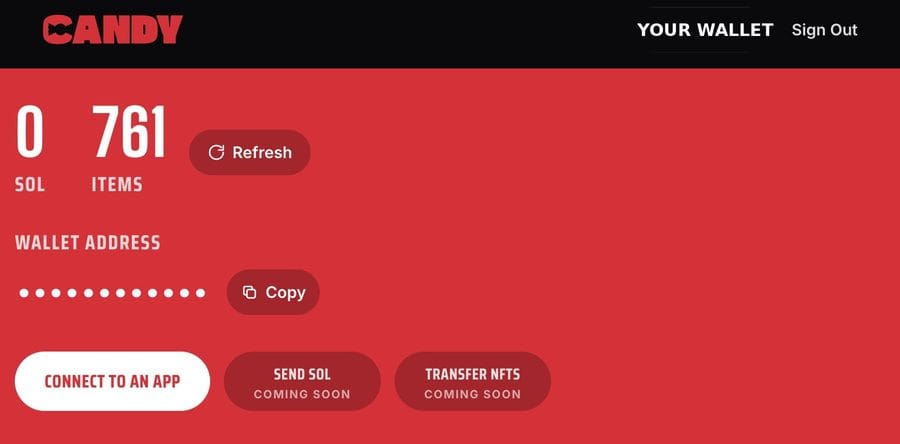
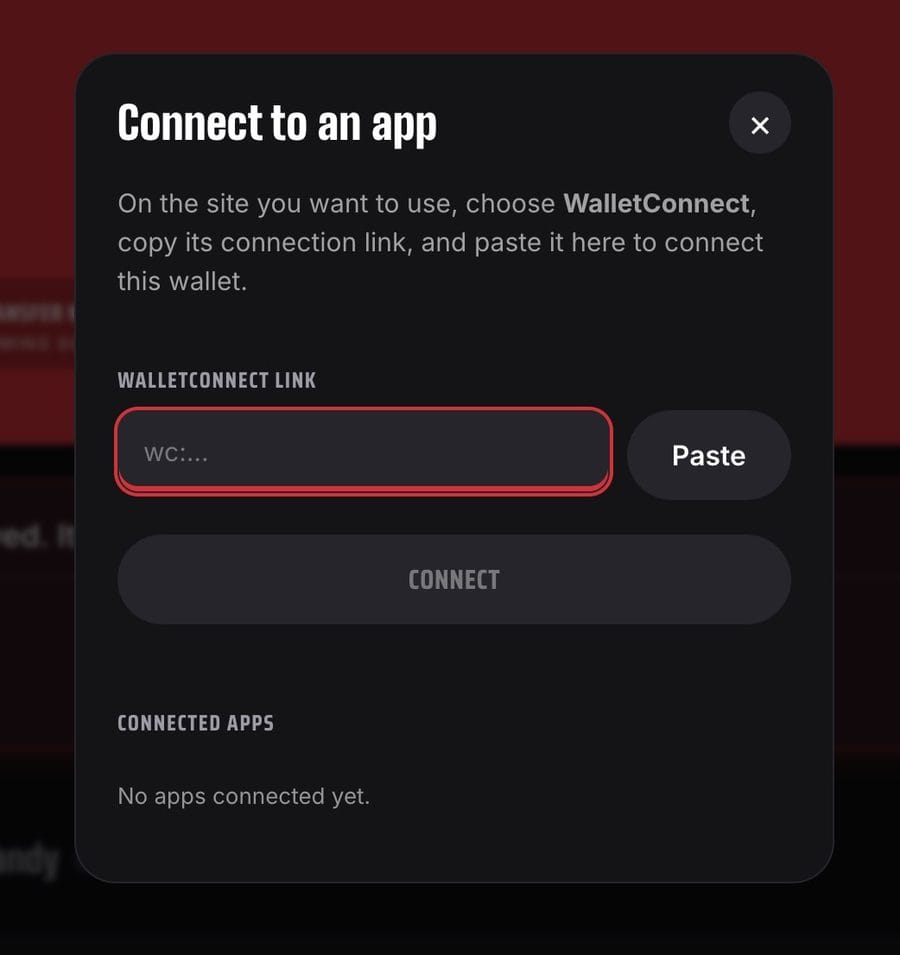
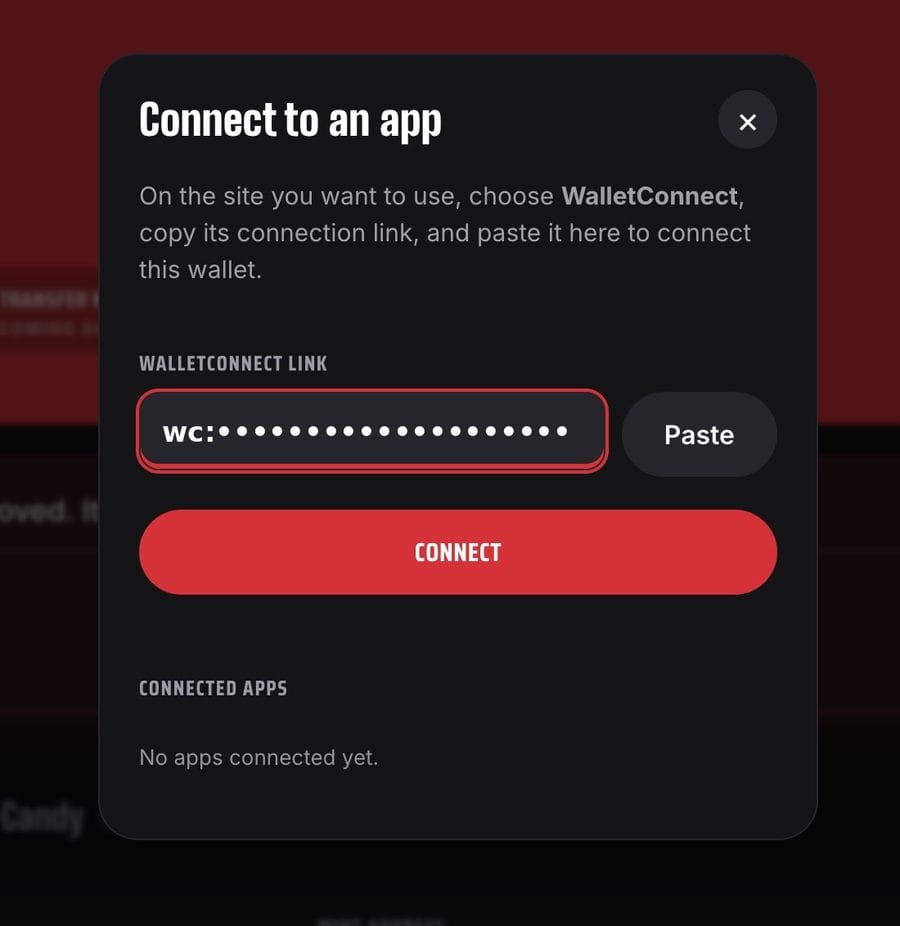
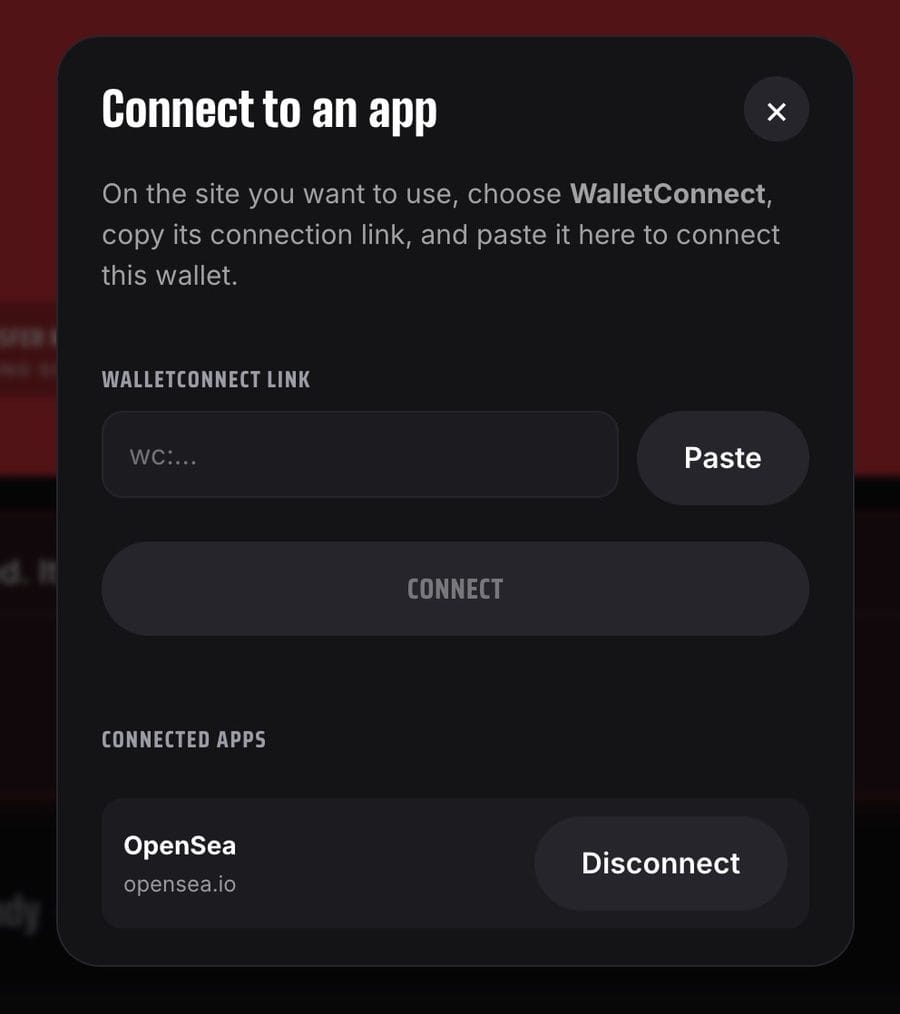
A window opens asking for a WalletConnect link. Leave it open. We'll get that link from OpenSea next.
Step 2: On OpenSea, choose WalletConnect
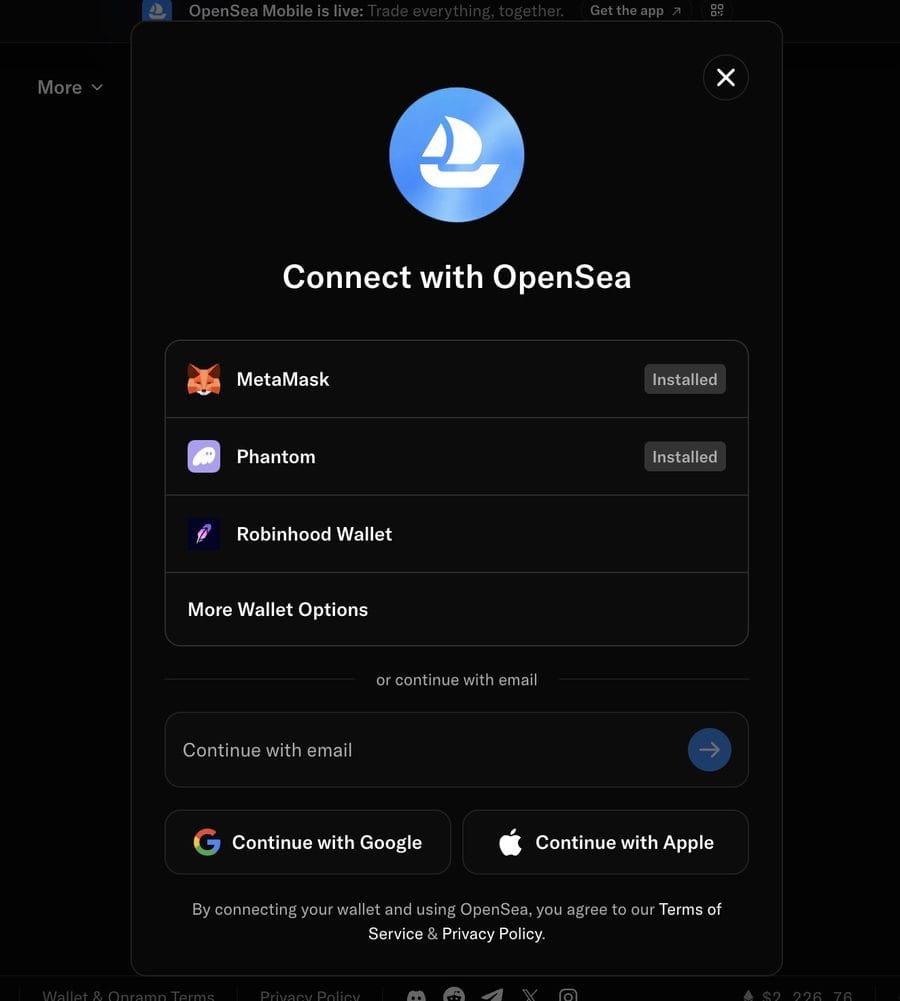
In your other tab, go to opensea.io and click the Connect button in the top right. You'll see a list of wallets. Click More Wallet Options.
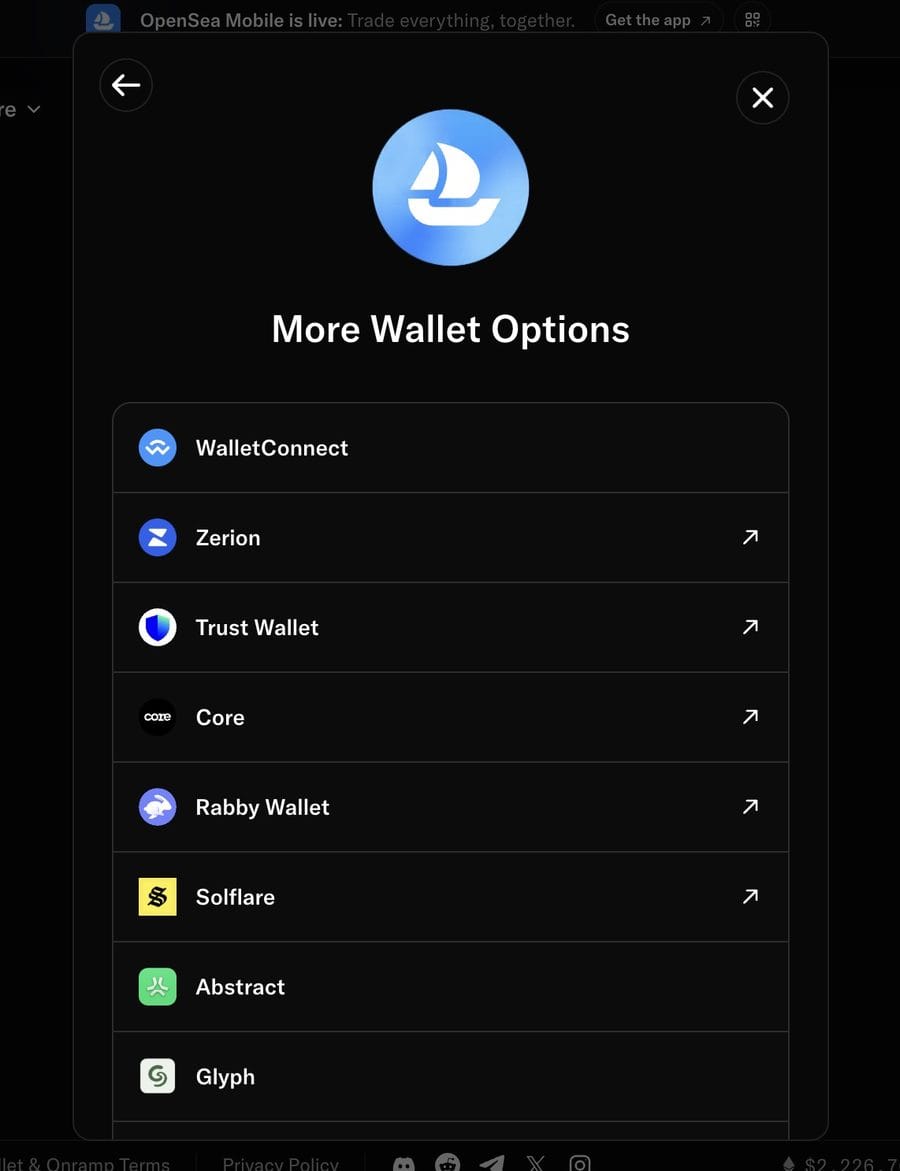
Choose WalletConnect from the list.
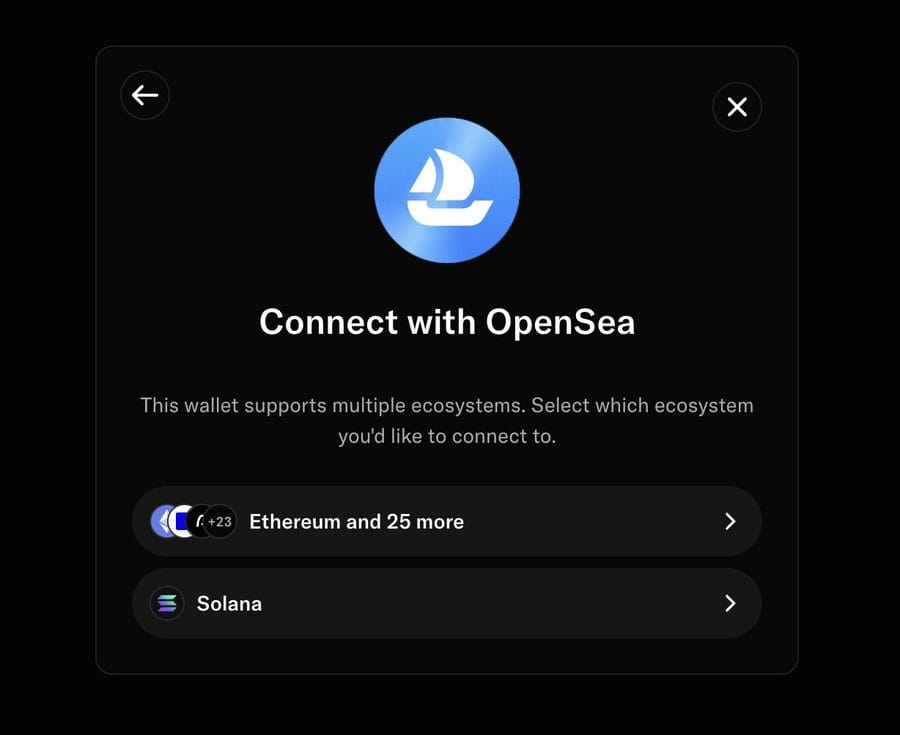
OpenSea will ask which network you want to connect to. Choose Solana. That's where your Candy collectibles live.
Step 3: Copy the WalletConnect link
OpenSea shows you a QR code with a Copy link button underneath. Click Copy link. Ignore the QR code. That's for mobile wallet apps, and your Candy Wallet lives in your browser.
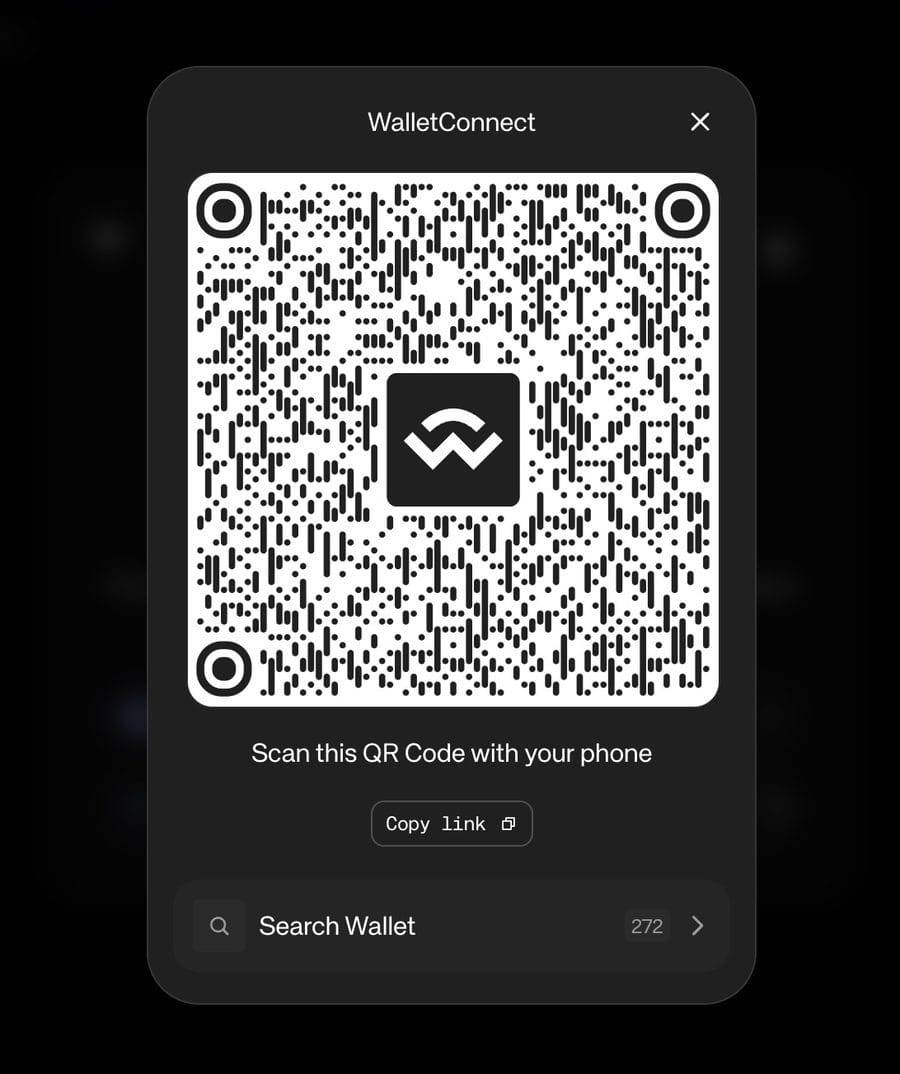
Move quickly on the next step. The link expires after a few minutes. If it does, just come back here and copy a fresh one.
Step 4: Paste the link into your Candy Wallet
Back in your Candy Wallet tab, click Paste next to the WalletConnect Link box (or paste it in yourself). Then click Connect.
Step 5: Approve the connection
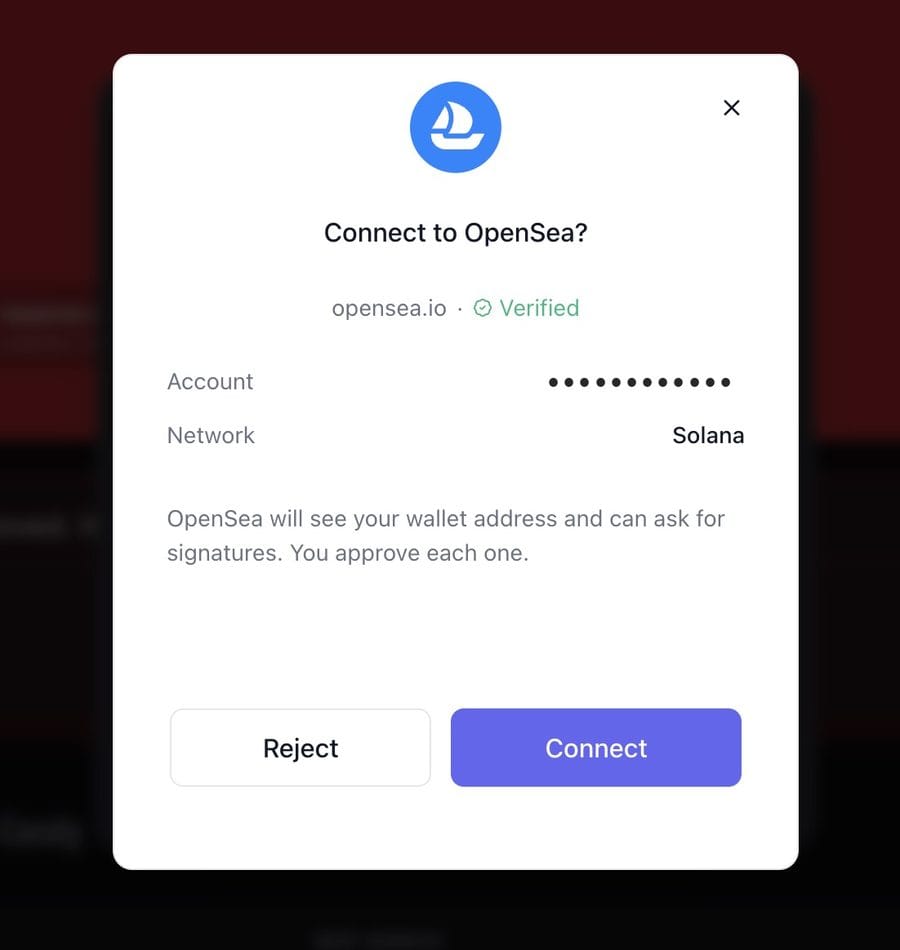
Your Candy Wallet asks you to confirm. Check that it says opensea.io with a green Verified badge, then click Connect.
That's it. You're connected.
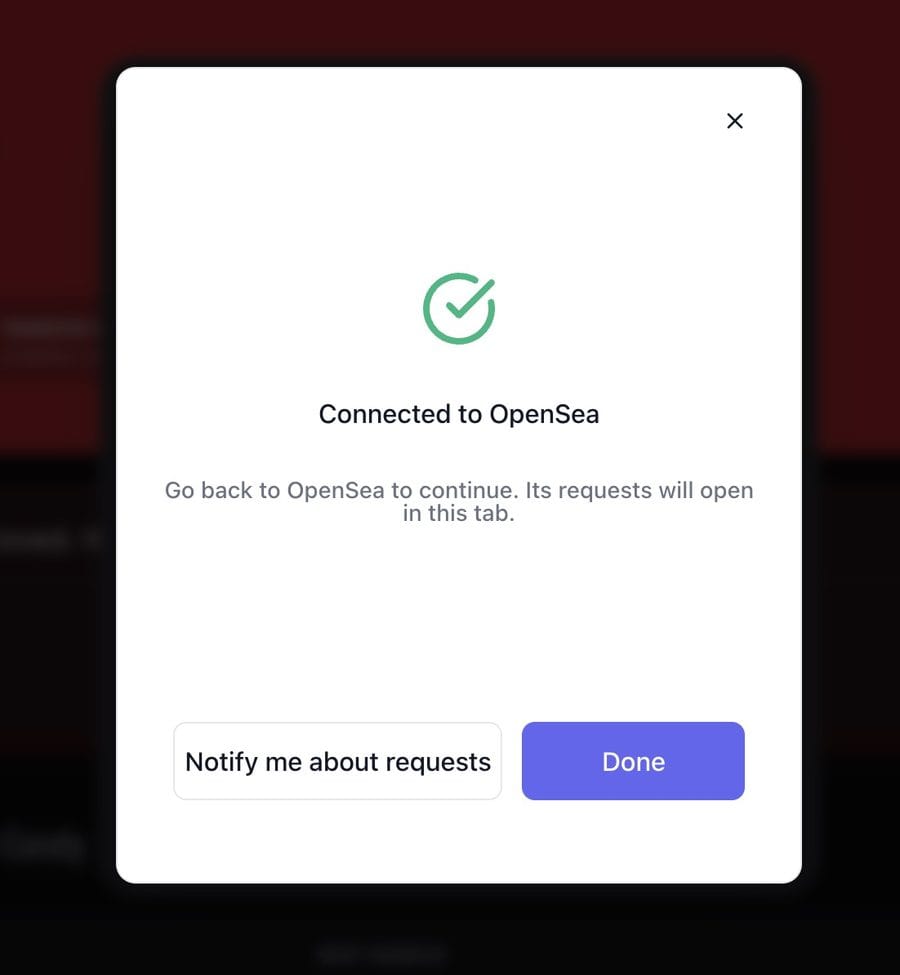
Go back to your OpenSea tab and your collection will be there. Keep your Candy Wallet tab open while you trade. When you list something, buy something or make an offer, OpenSea sends the approval to that tab, and nothing goes through until you say yes. If you'd rather get a heads up, click Notify me about requests on the confirmation screen.
Managing connected apps
Any time you open Connect to an App, you'll see which marketplaces are connected. You can disconnect one with a single click and reconnect whenever you want.
Connecting to Magic Eden
Same idea, slightly different buttons.
- In your Candy Wallet, click Connect to an App and leave that window open.
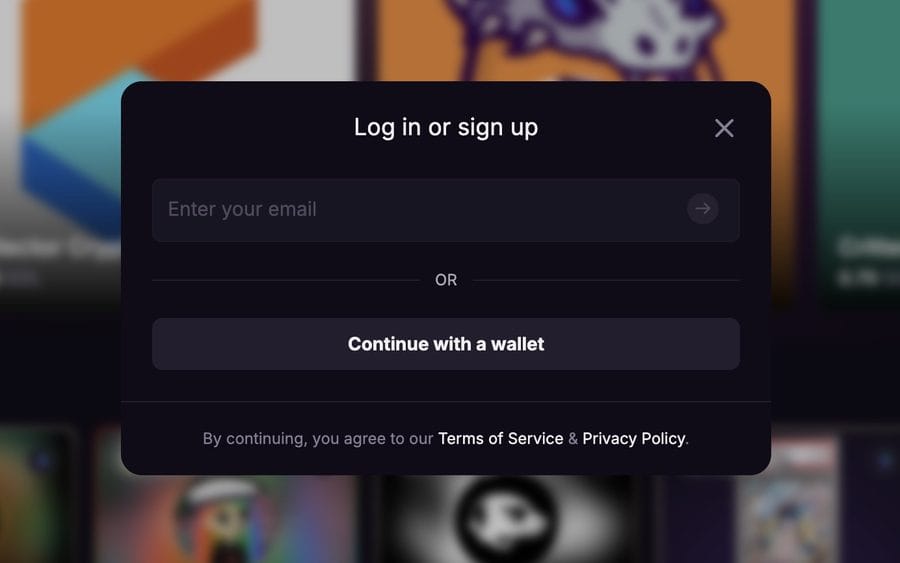
- On magiceden.io, click Connect in the top right, then Continue with a wallet.
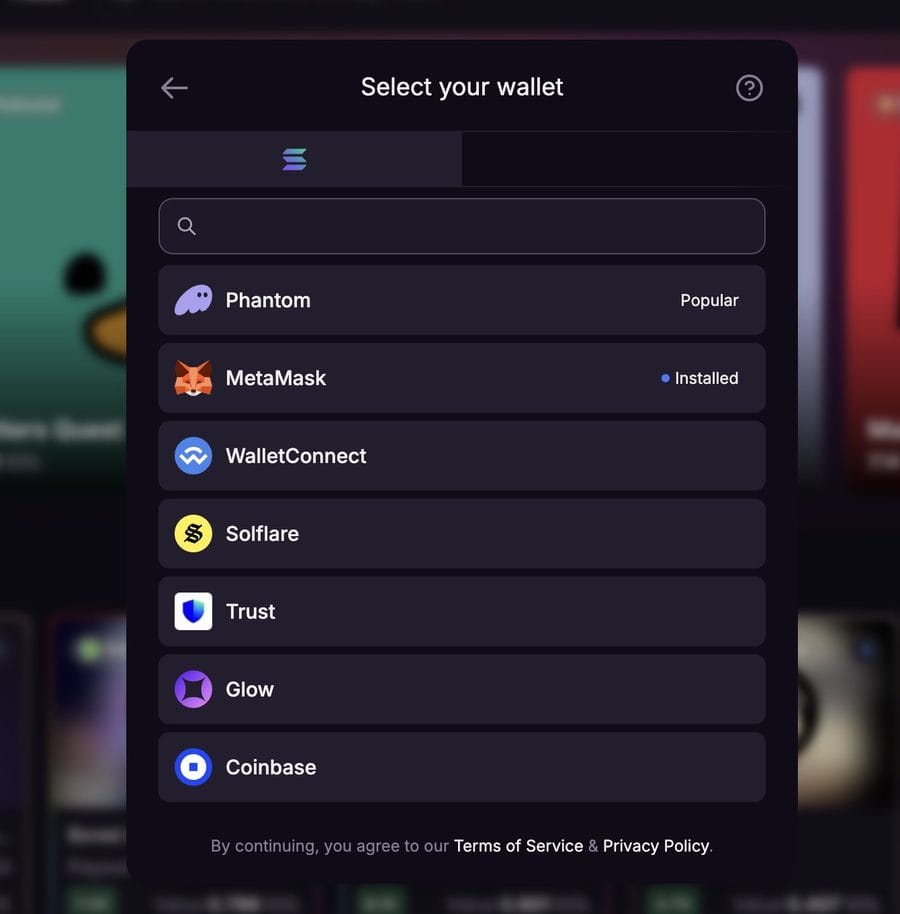
- Choose WalletConnect from the wallet list.
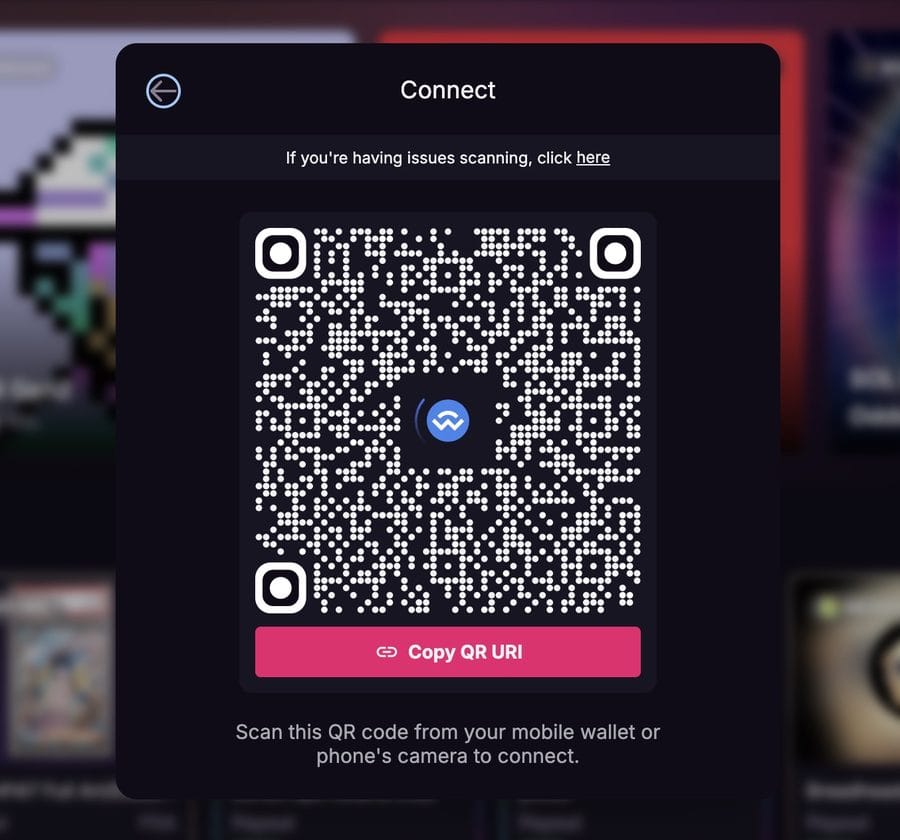
- Click Copy QR URI under the QR code.
- Paste the link into your Candy Wallet, click Connect, then approve the connection.
Connecting to Tensor
Tensor works the same way. Click Connect Wallet on tensor.trade, choose WalletConnect, copy the connection link, and paste it into Connect to an App in your Candy Wallet. Approve the connection and you're set.
Good to know
- You approve everything. Nothing moves out of your wallet without you clicking Connect or Approve in your Candy Wallet tab. If you see a request you didn't start, reject it.
- Check the name before you approve. Your Candy Wallet shows the site asking to connect. Make sure it's the marketplace you're on.
- Small network fees. Listing, buying and making offers each carry a small fee paid in SOL. If a transaction won't go through, that's the first thing to check.
- Links expire. If the WalletConnect link stops working, copy a fresh one from the marketplace.
- Candy will never ask for your one-time code or a recovery phrase. Not by email, not by DM, not in Discord.
Get back to it
Your collection is waiting. Claim your Candy Wallet at wallet.candy.io, connect it to your marketplace of choice, and start trading.
Questions? Email [email protected] or find us in the Candy Discord.